
Try ZoneFlow in Your Browser: A Live Irrigation Demo
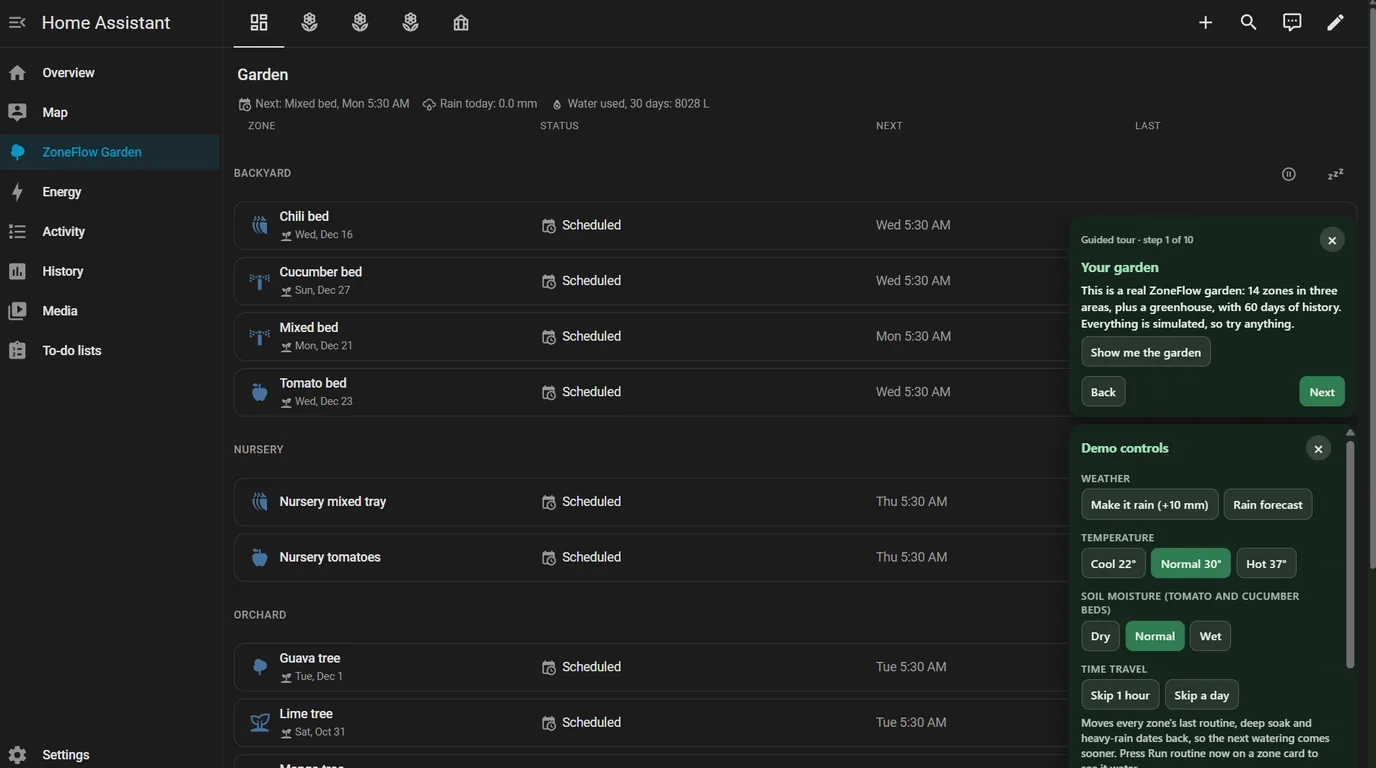
Most people want to see an irrigation system working before they install anything. So there is now a live demo of ZoneFlow that runs in your browser. You don't need Home Assistant, an account or a valve. You open a page and a garden is already there, and it is yours alone.
What you are looking at
It is a real ZoneFlow garden on a simulated Home Assistant. There are 14 zones in three areas, Backyard, Nursery and Orchard, plus a greenhouse. It has 20 plants and 60 days of watering history, set in Chiang Mai. Everything is simulated, with no internet access and no real hardware, so nothing can go wrong.
You are logged in automatically as admin, so you can change anything.
How to start it
- Open the live demo page.
- Press Start the live demo.
- Follow the guided tour, or close it and poke around.
The demo opens inside the page. There is a Full screen button above it if you want more room. On a phone it opens in its own tab, because Home Assistant is cramped in a small frame.
The demo controls
The Demo controls button at the bottom right changes the weather and the time for you.
- Make it rain. Make it rain (+10 mm) adds about 10 mm to the Backyard rain gauge. Rain already counts as watering, so look at what the Backyard zones decide to do next. Rain forecast switches "rain tomorrow" on and off.
- Change the temperature. Cool 22°, Normal 30° or Hot 37°. The Chili bed waters by temperature, so a hot day moves it to a hotter tier.
- Dry or wet soil. Dry, Normal or Wet for the Tomato and Cucumber beds' soil moisture.
- Skip time. Skip 1 hour and Skip a day make the next watering come sooner. Then press Run routine now on a zone card to see it water.
- Water the Tomato bed for 5 minutes. It waters at once, and you can watch the valve open and the litres count up.
- Start over. It asks to confirm, then gives you a fresh garden.
- Shrink the button turns the controls into a small icon.
Changes can take up to 30 seconds to show, because ZoneFlow refreshes its numbers twice a minute.
Things to try in the garden
- Open a zone. Click the Tomato bed to see the next watering, its plants and how the amount is worked out. The Why? button shows the numbers behind a decision. If you want to learn to read the status sentences, Why didn't it water today? goes through them one by one.
- Add a zone. Press Add device, then Add a zone. Name it, choose what is planted and where it grows, and leave Quick setup ticked. Pick a spare valve, such as "Spare drip valve 3", say how the water is delivered and give a rough amount. Calibrating the flow rate later measures it exactly. See Calibration.
- Add a plant. Open a zone, scroll to the bottom of its card and press Plants. You can rename a plant, add a note and read its history.
- Plants ready to move. Open Nursery tomatoes and press Plants. A plant raised from seed shows its stage (Seed, Seedling, Ready to move) and the days left. Press Move to send it to a bed, and its history goes with it. ZoneFlow never moves anything by itself.
- Check my setup. At the bottom of every zone card, it gives a plain checklist with the problems first: whether the valve answers, whether the sensors report and whether the flow rate is set.
The zones are grouped into areas, each with its own Pause and Snooze Today. Areas, plants and presets explains how that works at home.
The guided tour
If you would rather be shown around, start the Guided tour from the demo controls. It has 10 steps and takes about 5 minutes: your garden, open a zone, make it rain, try a hot day, water a zone, add a zone, add a plant, plants ready to move, check my setup, and a final step that links to getting ZoneFlow. The tour notices when you have done a step and shows "Done".
Good to know
- Your garden is yours alone. It is removed about 5 minutes after you close the tab, and also after 30 minutes idle or 2 hours in total. Reloading within 5 minutes keeps it.
- At most 14 visitors can use the demo at once. If it is full, the page says so and tries again by itself.
- The "Simulated demo" banner can be closed, and it stays hidden for 7 days.
Like what you see?
ZoneFlow is free and runs locally in your own Home Assistant. The demo is just a try-before-you-install preview. Follow Getting started to install it through HACS and add your first zone. The dashboard guide shows how to get the same view as in the demo with two lines of YAML.
If something in the demo confuses you, or you would like it to show something it does not, tell me and I will look at it.